Odoo 19 introduces several changes to Inventory settings, including how entire packages, units of measure, and product packagings are configured and used.
These changes also affect how some features work in Ventor PRO, our advanced warehouse management app for Odoo.
In this guide, we’ll compare the relevant Odoo 18 and Odoo 19 settings, explain how they affect Ventor PRO, and highlight what you need to know when upgrading to Odoo 19.
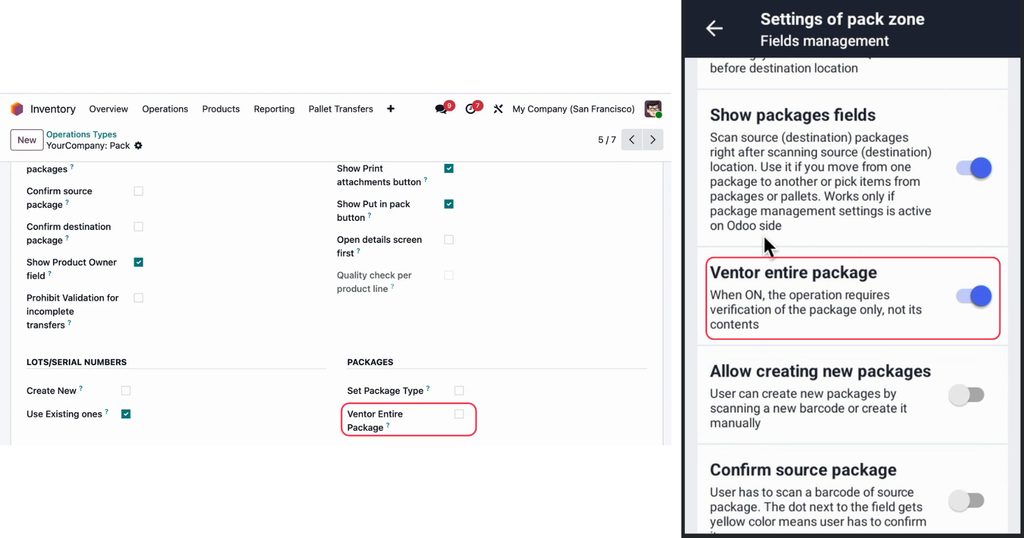
Ventor Entire Package
In Odoo 19, the standard Move Entire Packages option has been moved to the Barcode App tab of the Operation Type settings and now applies exclusively to Odoo’s native Barcode app.
To maintain the same functionality in Ventor PRO, we introduced a separate Ventor Entire Package option. It works similarly to the original Odoo 18 setting and can also be enabled directly in the Ventor app.
| Odoo 18 | Odoo 19 | |
| Odoo | The Move Entire Packages checkbox is located in the Packages section of the Operation Type settings (e.g. Pack). It requires the Packages option to be enabled under Inventory > Configuration > Settings. Disabled by default. | The Move Entire Packages checkbox is still available in the Operation Type settings, but has been moved to the Barcode App tab. It applies only to Odoo’s native Barcode app. |
| Ventor PRO | Ventor PRO follows the standard Odoo Move Entire Packages setting. | A new Ventor Entire Package checkbox is available in the Packages section of the Operation Type settings, next to Set Package Type. This is where the original Move Entire Packages option was located in Odoo 18. The new option is available when the Ventor Base module is installed. |
How to enable it in Ventor PRO
You can enable or disable Ventor Entire Package directly in the app:
- Open the Operation Type settings.
- Go to Fields Management.
- Find and toggle Ventor Entire Package.
The option is available for Warehouse Operations, Batch Picking, Cluster Picking, and Wave Picking.
Changing this setting requires the appropriate access rights in Ventor PRO.
How does it work?
The functionality is very similar to the original Odoo 18 behavior. When enabled, Ventor PRO requires you to verify the package rather than scan and verify each product inside it.
However, the validation behavior in Odoo 19 depends on the package type:
- Disposable packages: Scan and validate the package.
- Reusable packages: Scan and validate the product.
For more details, see our guide: How to Move an Entire Package in Odoo.
Units of Measure and Packaging
In Odoo 19, Units of Measure and Product Packagings are combined into a single configuration setting and unified list. Packaging is now treated as an alternative unit of measure rather than a separate field on order lines.
This changes how users select packaging in Odoo and Ventor PRO, how quantities are calculated, and how packaging information is displayed during warehouse operations.
| Odoo 18 | Odoo 19 | |
| Setting | Two separate checkboxes under Inventory > Configuration > Settings > Products: Units of Measure and Product Packagings. | Both options are combined into one checkbox: Units of Measure & Packagings. The Units & Packagings link opens a unified list of units and packagings (e.g. Pair = 2 Units, Full Pallet = 10 Units), each of which can have its own barcode. |
| Packagings on the product | Configured in the product form, under the Inventory tab in the Packaging section, or through the Product Packagings list. | Configured in the product form, under the Sales tab, in the Packagings field. A packaging must be configured here before it can be selected on receipts and sales orders. |
| Order lines in Odoo | Packaging is displayed in separate columns, including packaging quantity and Packaging. For example, 4 × Pair results in a total quantity of 8 Units. | There are no separate packaging fields. Instead, you select the desired unit directly in the Unit column (Units, Pair, Full Pallet). The price is adjusted according to the selected unit (e.g. Full Pallet = 10 Units). |
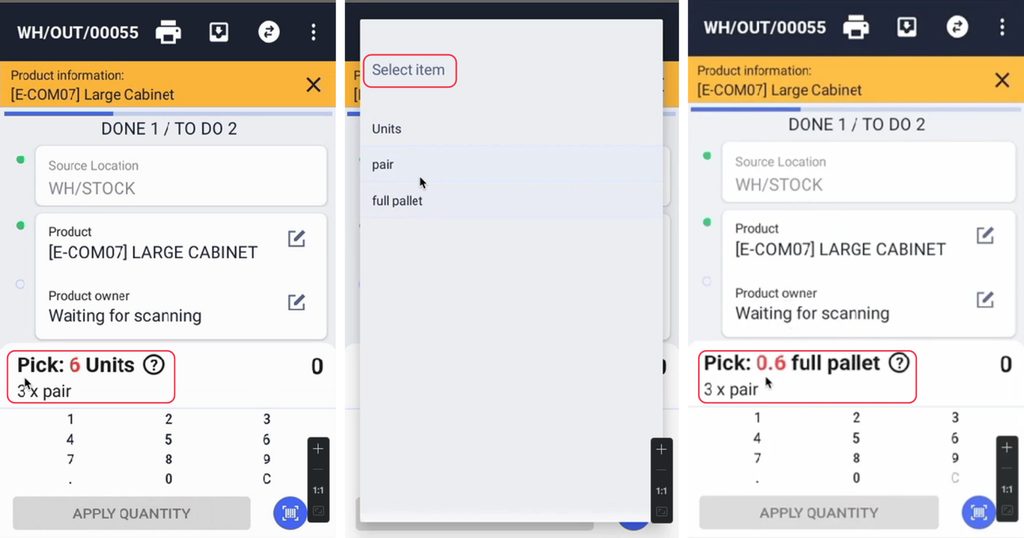
| Ventor calculator on a transfer | Displays the packaging information below the total quantity, e.g. Receipt: 8 Units / 4 × Pair. | Displays packaging information in a similar way, e.g. Pick: 6 Units / 3 × Pair. However, you can now change the unit directly in the calculator (Units / Pair / Full Pallet), and the quantity is recalculated accordingly. |
| Quotation created in Ventor PRO | The product editing form includes Packaging and Packaging QTY fields. | The product editing form includes only Quantity (and Taxes). The quantity is expressed in the product’s default unit of measure. You cannot select an alternative unit or packaging when creating a quotation in the app. |
How does barcode scanning work in Ventor PRO?
Scanning a packaging barcode adds the corresponding packaging quantity to the current order line. For example:
- Scanning a Pair barcode adds 2 Units.
- Scanning a Full Pallet barcode adds 10 Units.
- Scanning another packaging barcode on the same line adds the quantity associated with that packaging.
The quantities are accumulated in the product’s unit of measure.
Where is packaging information displayed?
There are also some differences in how packaging information appears across the app and Odoo interface:
- Product Quick Info: Displays quantities in the unit of measure only. Packaging details are not shown.
- Transfers in Ventor PRO: Packaging information is displayed in the calculator, alongside the total quantity.
- Odoo 18 receipt form: Includes a separate Packaging column showing the selected packaging (e.g. Pair, Full Pallet).
- Odoo 19 delivery form: No longer has a separate Packaging column. Quantities are displayed in the selected unit of measure.
Package Type and Reusable Package
There are no significant changes to Package Types or reusable package handling in Odoo 19. The functionality and its behavior in Ventor PRO remain the same as in Odoo 18.
Package Types and carrier integration
- Enabling the Packages checkbox under Inventory > Configuration > Settings activates Packages and Package Types.
- A Package Type retains the same fields: Barcode, Company, and Carrier. Installing a carrier integration module also adds that carrier’s Package Types.
- When a carrier is assigned to an order, tapping Put in Pack in Ventor PRO opens the available Package Types for that carrier (e.g. FedEx® Box). You can edit the Shipping Weight and then confirm the selection.
This functionality is available in Warehouse Operations, Batch Picking, and Package Management.
Package information in Ventor PRO
- Quick Info: Displays the Package Type assigned to a package. You can remove it or select another existing Package Type, but you cannot create a new one directly in the app.
- Package Type barcode scanning: Scanning a Package Type barcode in Quick Info does not return a result. Ventor PRO does not have a dedicated Package Type view, and this limitation is present in both Odoo 18 and Odoo 19.
Reusable Packages
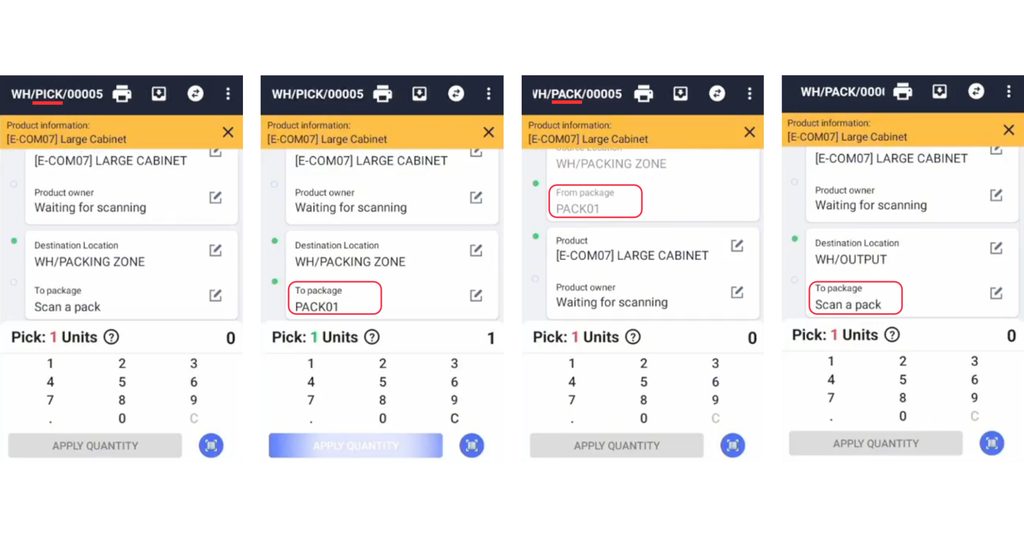
Reusable packages are unpacked before being used in the next transfer. As a result, the To Package field is empty when you start processing the next transfer, and Ventor PRO does not automatically suggest repacking the products into the same box.
With disposable packages, the To Package field is populated, allowing you to continue using the same package.
This behavior is unchanged between Odoo 18 and Odoo 19.
What Changes When Moving to Odoo 19?
Odoo 19 introduces changes to how Inventory handles entire packages and packaging units. While some functionality remains unchanged, other features require attention when upgrading.
Here’s what Ventor PRO users should keep in mind:
- Entire Packages: Enable the new Ventor Entire Package option in the Operation Type settings. The standard Odoo Move Entire Packages option now applies only to Odoo’s Barcode app.
- Units of Measure and Packaging: Packaging is now handled as an alternative unit of measure. Ventor PRO’s transfer calculator supports switching between units and recalculating quantities accordingly.
- Package Types and Reusable Packages: The existing functionality remains unchanged. Carrier-specific Package Types and reusable package handling work as they did in Odoo 18.
Before upgrading, review your Inventory configuration and check the relevant Ventor PRO settings to make sure your warehouse workflows continue to work as expected.
Explore advanced warehouse workflows, configurable operations, and faster barcode processing with Ventor PRO.
Start Your FREE 14-Day Trial
Need help getting more out of your Odoo warehouse? Try Ventor PRO and explore its advanced inventory management features.

------------------------------------------------------------------
Education: University of Lodz
------------------------------------------------------------------
Experience:
Product Marketing Manager
------------------------------------------------------------------
Current position: Product Marketing Manager
------------------------------------------------------------------
The Global Mini MBA