Imagine a warehouse employee processing five different orders. Each order contains several products, and some of those products are stored on the same shelves.
If the employee picks orders one by one, they may have to visit the same location repeatedly. This means more walking, more time spent moving around the warehouse, and less efficient use of working hours.
Cluster Picking in Odoo offers a smarter approach. Instead of completing each order separately, warehouse employees collect products for multiple orders during one trip. The difference is that every order has its own tote, so products remain separated throughout the picking process.
With Ventor PRO, you can combine several Odoo transfers into one batch, follow picking lines grouped by warehouse location, and collect products into the correct totes.
What Is Cluster Picking?
Cluster Picking is a warehouse picking method that allows employees to pick products for multiple orders simultaneously while keeping each order’s items in a separate container, usually a tote or bin.
All required products are collected during one trip through the warehouse. Instead of gathering everything together and sorting it afterward, the picker places each product directly into the tote assigned to its order.
For example, imagine that you need to process five e-commerce orders. Several of them contain the same products, but each order has a different combination of items.
With Cluster Picking, an employee can visit each warehouse location once, collect the required quantities, and distribute the products between the corresponding totes.
This reduces repetitive walking while helping prevent products from different orders getting mixed up.
Cluster Picking vs. Batch Picking: What’s the Difference?
Cluster Picking and Batch Picking are both designed to make warehouse picking more efficient by combining multiple orders into one picking operation. However, they handle the collected products differently.
With Batch Picking, an employee collects products for several orders together, usually into one cart or container. The products are then sorted into individual orders during a separate packing or sorting operation.
With Cluster Picking, each order has its own tote from the beginning. As the employee picks products, they place them directly into the correct tote.
| Feature | Batch Picking | Cluster Picking |
|---|---|---|
| Multiple orders in one trip | Yes | Yes |
| Products grouped by location | Yes | Yes |
| Separate tote for each order during picking | Not required | Yes |
| Sorting after picking | Usually required | Products are already separated |
| Best suited for | Multiple small orders with matching items | Multiline orders with partially overlapping products |
Cluster Picking is particularly useful when orders contain several different products, but some items overlap between orders. It allows employees to benefit from combined picking routes without having to sort all the products afterward.
How Cluster Picking Works in Ventor PRO
Ventor PRO allows warehouse employees to process multiple Odoo transfers together while keeping products for each transfer in a dedicated tote.
Let’s walk through the workflow.
1. Combine Multiple Odoo Transfers into One Batch
First, prepare the Odoo transfers you want to process together.
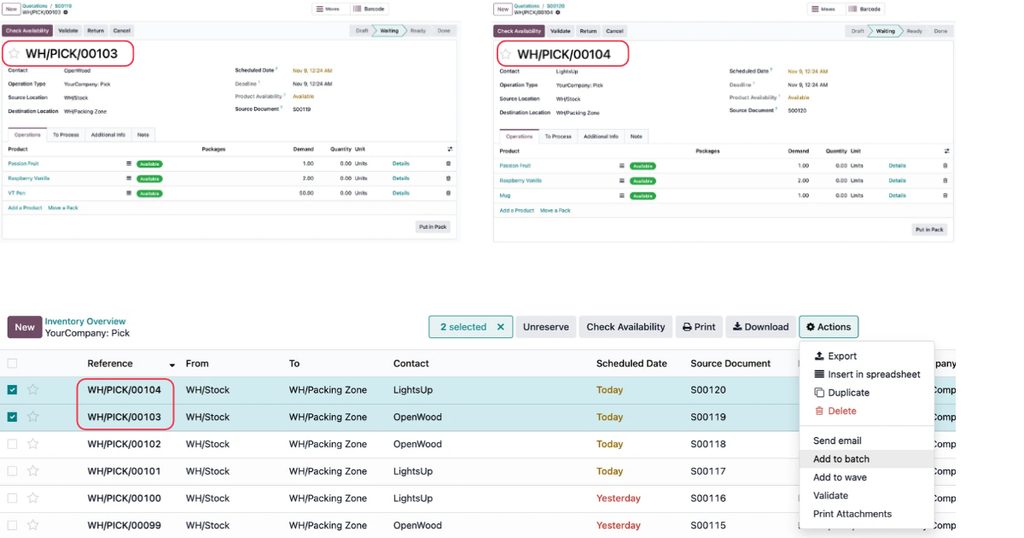
In our example, we have several orders that need to be picked. Instead of opening each transfer separately, we combine them into one batch.
Once the transfers are grouped, they are marked as a batch in Odoo.
2. Open the Batch in the Cluster Picking Menu
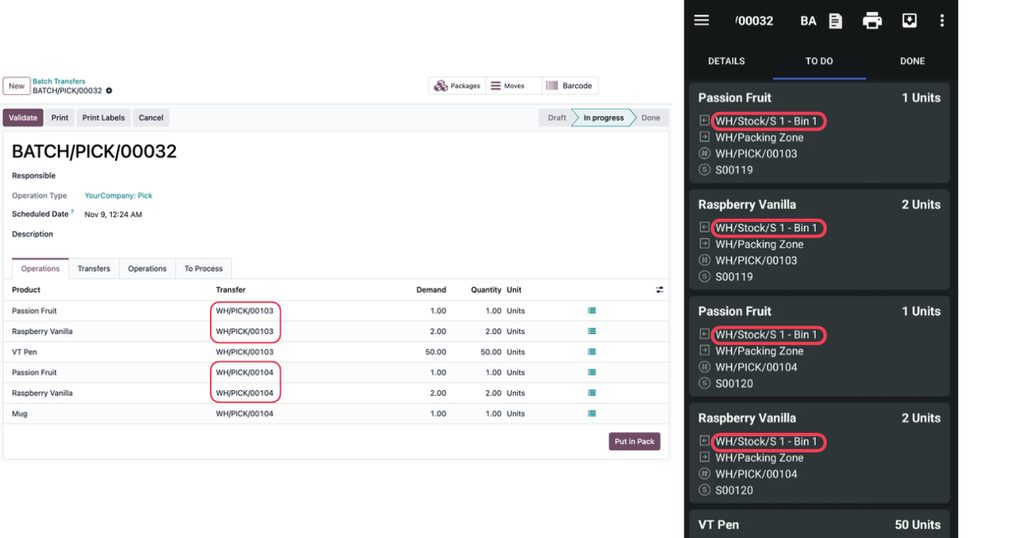
On your Android device, open the Cluster Picking menu in Ventor PRO and select the batch you want to process.
Ventor PRO loads the transfers included in the batch and organizes their picking lines by warehouse location.
This helps employees follow a more structured route through the warehouse instead of switching between individual orders.
If several transfers require products from the same location, the picker can collect the required quantities during the same visit.
3. Follow the Picking Route
Ventor PRO provides a clear interface that guides employees through the picking process and shows what needs to be collected.
After completing the picking lines at one location, the employee is directed to the next one.
For even better results, you can configure your warehouse routing to organize picking operations according to your warehouse layout.
Find the warehouse routing setup instructions here.
4. Assign a Tote to Each Transfer
This is where Cluster Picking differs from standard Batch Picking.
When you start picking the first line of a transfer included in the batch, Ventor PRO asks you to place a tote on that transfer.
Once assigned, the same tote is used for all remaining picking lines belonging to that transfer. This helps ensure that products for one order always go into the correct container.
The application keeps track of the tote assigned to each transfer, helping employees avoid mixing products between orders.
5. Change the Tote When It Gets Full
What happens if a tote becomes full before you’ve finished picking the order?
You can simply switch to another tote. The remaining products for that transfer will be collected into the new container.
This makes the workflow flexible enough to handle orders of different sizes without interrupting the entire picking operation.
6. Configure Product and Location Confirmation
Ventor PRO offers several configuration options for controlling how employees confirm picking operations.
For example, you can require employees to confirm:
- The source warehouse location.
- The product being picked.
- The tote receiving the product.
These settings help you adapt the workflow to your warehouse requirements and the level of confirmation your operations need.
7. Complete the Batch and Send It to Packing
Once all picking lines have been processed, the products for each transfer are collected in their assigned totes.
Multiple orders have now been picked during one trip through the warehouse, and their products are already separated.
The cart can be sent to the next stage of your fulfillment process, with each tote containing the products for its corresponding order.
When Should You Use Cluster Picking?
Cluster Picking is especially useful for warehouses that process multiple orders with partially overlapping product lines.
A typical example is an e-commerce warehouse. Customers often order different combinations of products, but many orders may include some of the same items.
Cluster Picking can be a good fit if:
- Your warehouse processes multiple multiline orders throughout the day.
- Different orders frequently contain some of the same products.
- Employees repeatedly visit the same warehouse locations.
- You want to collect products for several orders without mixing them together.
- You use carts with multiple totes or containers for order picking.
If your warehouse mainly processes small orders with matching products and you prefer to sort everything during a separate packing operation, Batch Picking may be a better fit.
Make Odoo Warehouse Picking More Efficient with Ventor PRO
Cluster Picking helps warehouse employees reduce repetitive walking while keeping products for different orders organized throughout the picking process.
With Ventor PRO, you can:
- Combine multiple Odoo transfers into one batch.
- Group picking lines by warehouse location.
- Assign a separate tote to each transfer.
- Track which products belong in each tote.
- Change containers when they become full.
- Configure confirmation options to match your warehouse workflow.
Want to see the entire process in action?
Watch our video demonstration of Cluster Picking in Ventor PRO and discover how to make multiple-order picking more efficient.
Take your Odoo warehouse further with Ventor PRO!

------------------------------------------------------------------
Education: University of Lodz
------------------------------------------------------------------
Experience:
Product Marketing Manager
------------------------------------------------------------------
Current position: Product Marketing Manager
------------------------------------------------------------------
The Global Mini MBA