Inventory accuracy is one of the biggest challenges in warehouse management. Even small discrepancies between physical stock and your ERP can lead to delayed shipments, incorrect purchasing decisions, and dissatisfied customers.
That’s why regular inventory counts are essential. However, traditional inventory methods are often slow, paper-based, and prone to human error.
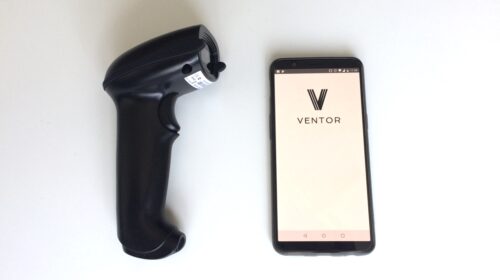
With Odoo and the Ventor PRO app, warehouse workers can perform inventory counts directly from a mobile device using barcode scanning. Even better, they can conduct blind inventory, one of the most reliable methods for ensuring accurate stock counts.
In this guide, we’ll show you how to perform a blind inventory in Odoo using Ventor.
What Is a Blind Inventory?
A blind inventory is a stock count where warehouse employees do not see the expected quantity stored in the ERP. Instead of trying to match the system’s numbers, workers simply scan everything they physically find on the shelves. This approach significantly reduces confirmation bias and helps uncover inventory discrepancies that might otherwise go unnoticed.
Rather than asking: “The system says there should be five items. Can I find five?”
Warehouse operators ask: “How many items are actually here?”
For businesses that prioritise inventory accuracy, blind inventory is considered one of the best practices.
Why Use a Mobile Device for Inventory?
Inventory counting with a smartphone or barcode scanner is significantly faster than using paper count sheets or returning to a desktop computer after every count.
Using the Ventor app, warehouse workers can:
- scan locations and products with barcodes;
- update quantities in real time;
- move quickly between warehouse locations;
- eliminate manual data entry;
- reduce counting errors.
The result is a faster, more reliable inventory process.
Before You Begin
Before starting the inventory count in Ventor PRO, make sure the Counted Quantity field has been reset in Odoo.
Go to Inventory → Operations → Physical Inventory and review the Counted Quantity column. If you’re working with a large inventory (more than 80 lines), select all records before making changes. If any products have been counted previously, clear the Counted Quantity values to ensure the inventory starts from zero. This step is required for an accurate blind inventory.
Step 1. Open the Inventory Adjustment Menu
Start by opening the Inventory Adjustment menu in Ventor PRO.
Here you’ll see the products included in the inventory operation. The mobile workflow is designed specifically for warehouse employees, allowing them to complete counts quickly while moving through the warehouse.
Step 2. Enable Blind Inventory
Before starting the count, enable two important settings:
- Start Count From Zero
- Hide Products Quantity
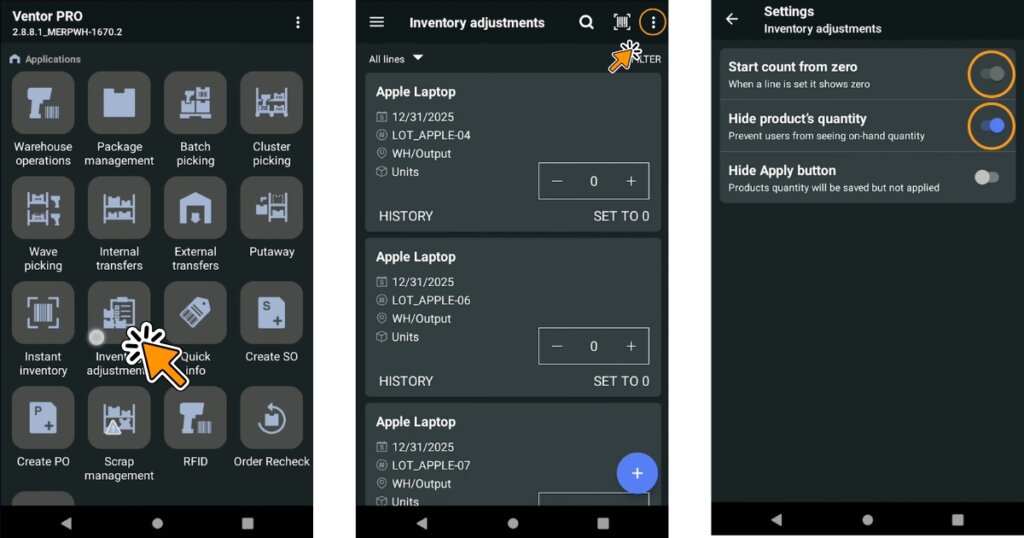
These options transform a standard inventory count into a blind inventory.
When Hide Products Quantity is enabled, warehouse workers cannot see the expected quantity stored in Odoo.
When Start Count From Zero is enabled, every product begins with a counted quantity of zero, and the operator simply adds the items they physically find.
This encourages objective counting instead of confirming what the system expects.
Step 3. Scan a Warehouse Location
Rather than searching through the entire inventory list, simply scan a warehouse location. Ventor PRO automatically filters the inventory to show only the products stored in that location.
This makes it easier to focus on one shelf or storage area at a time and keeps the counting process organised. For warehouses counting only a specific zone instead of the entire facility, location filtering can save a considerable amount of time.
Step 4. Scan Every Item You Find
Now the actual counting begins.
The process is straightforward:
- Scan a product barcode.
- Scan additional units if needed.
- Enter or confirm the counted quantity.
- Apply the result.
- Move to the next product.
The important point is that operators don’t know how many items should be there.
Their only task is to record what physically exists on the shelf.
Every count reflects the physical inventory not the ERP’s expectations.
Step 5. Repeat for Every Location
Repeat the same workflow until every required shelf has been counted.
Because everything is performed on a mobile device, there’s no need to carry paperwork or return to a workstation between locations.
Why Blind Inventory Improves Accuracy
One of the biggest risks during inventory counting is unconscious bias.
Imagine the ERP shows four items in stock. A warehouse worker finds five. If the expected quantity is visible, there’s a temptation to assume one item was counted twice and “correct” the count to match the system.
With blind inventory, that temptation disappears. Operators simply record reality. If five items are physically present, the system receives a count of five—even if Odoo expected four.
This approach helps identify genuine inventory discrepancies instead of hiding them.
Scan Products or Scan Locations
Ventor supports multiple counting workflows.
Warehouse employees can:
- scan a warehouse location to display all products stored there;
- scan an individual product directly;
- combine both methods depending on the inventory scenario.
This flexibility allows businesses to adapt the counting process to different warehouse layouts and operational needs.
Benefits of Mobile Inventory Counting in Odoo
Using the Ventor PRO app for inventory counting provides several advantages:
- Faster inventory counts
- Barcode-based verification
- Reduced manual data entry
- Improved inventory accuracy
- Real-time synchronisation with Odoo
- Efficient location-based counting
- Easy adoption for warehouse staff
- Support for blind inventory best practices
Whether you’re performing cycle counts, partial inventories, or full warehouse stocktakes, mobile barcode scanning makes the entire process faster and more reliable.
As warehouse operations grow, maintaining accurate inventory becomes increasingly important. Manual counting methods and paper-based processes can quickly become bottlenecks, leading to costly errors and wasted time.
With Ventor PRO, warehouse teams can perform blind inventory directly from a mobile device, using barcode scanning and real-time synchronisation with Odoo. The result is a faster, simpler, and more accurate inventory process that scales with your business.
If you’re looking to improve inventory accuracy in Odoo while making life easier for your warehouse staff, mobile inventory counting is a practical place to start.
Recommended articles:

------------------------------------------------------------------
Education: University of Lodz
------------------------------------------------------------------
Experience:
Product Marketing Manager
------------------------------------------------------------------
Current position: Product Marketing Manager
------------------------------------------------------------------
The Global Mini MBA